> ## Documentation Index
> Fetch the complete documentation index at: https://docs.arcprize.org/llms.txt
> Use this file to discover all available pages before exploring further.
# Edit Game
> A guide to modifying games in ARC-AGI-3 Environments
## Project Setup
### Environment Configuration
Game files are stored in an environments directory. The default is `environment_files` in the project root.
You can configure this in your `.env` file:
```dotenv theme={null}
environments_dir = my_environments
```
Or specify it directly when initializing the client:
```python theme={null}
arc = arc_agi.Arcade(environments_dir="./my_environments")
```
### Directory Structure
The environments follow this directory structure:
```
ARC-AGI/
└── environment_files/
└── ls20/
└── v1/
├── ls20.py # Main game file
└── metadata.json # Game metadata
```
### Creating a New Version
Copy your existing version folder to create a new version:
```bash Mac/Linux theme={null}
cp -r environment_files/ls20/v1 environment_files/ls20/v2
```
```bash Windows theme={null}
xcopy environment_files\ls20\v1 environment_files\ls20\v2\ /E /I
```
Your directory now looks like this:
```
ARC-AGI/
└── environment_files/
└── ls20/
├── v1/
│ ├── ls20.py
│ └── metadata.json
└── v2/ # your new version
├── ls20.py
└── metadata.json
```
Then update `metadata.json` with the new version ([more info](/add_game#metadata-file)):
```json theme={null}
{
"game_id": "ls20-v2",
"default_fps": 5,
"local_dir": "environment_files\\ls20\\v2"
}
```
Test the new version:
```python theme={null}
import arc_agi
arc = arc_agi.Arcade()
env = arc.make("ls20-v2", render_mode="terminal")
```
***
## Editing the Game File
The main game logic resides in `game-id.py`. This file contains:
| Name | Type | Description |
| --------- | -------------------- | ------------------------------------------------------ |
| `sprites` | `dict[str, Sprite]` | Sprite templates with pixel arrays and properties |
| `levels` | `list[Level]` | Level objects with sprite placements and configuration |
| `GameId` | `class(ARCBaseGame)` | Game class implementing gameplay mechanics and logic |
```python theme={null}
# Typical structure of game-id.py
from arcengine import ARCBaseGame, Camera, GameAction, Level, Sprite
# Sprite definitions
sprites = {
"sprite-1": Sprite(pixels=[...], name="sprite-1", ...),
"sprite-2": Sprite(pixels=[...], name="sprite-2", ...),
# ...
}
# Level definitions
levels = [
Level(sprites=[sprites["sprite-1"].clone().set_position(0, 0)...], grid_size=(64, 64), data={...}),
Level(sprites=[sprites["sprite-2"].clone().set_position(0, 0)...], grid_size=(64, 64), data={...}),
# ...
]
# Game class
class Game-id(ARCBaseGame):
def __init__(self) -> None:
# Initialize camera, UI, game state
...
def on_set_level(self, level: Level) -> None:
# Called when a level loads - setup level-specific state
...
def step(self) -> None:
# Main game logic - handle actions, collisions, win/lose conditions
...
self.complete_action()
```
***
## Editing Existing Sprites
### Modifying Sprite Pixels
To change an existing sprite's appearance, edit its pixel array directly in the `sprites` dictionary:
This sprite in `ls20.py` now uses colors 8 and 10 instead of 9 and 12.
```python theme={null}
sprites = {
"pca": Sprite(
pixels=[
[10, 10, 10, 10, 10],
[10, 10, 10, 10, 10],
[8, 8, 8, 8, 8],
[8, 8, 8, 8, 8],
[8, 8, 8, 8, 8],
],
name="pca",
visible=True,
collidable=True,
tags=["caf"],
),
}
```
ARCEngine uses a 16-color palette (0-15) plus -1 for transparent and -2 for transparent and collidable.
### Editing Sprites in Level Definitions
When sprites are placed in levels, you can modify them inline:
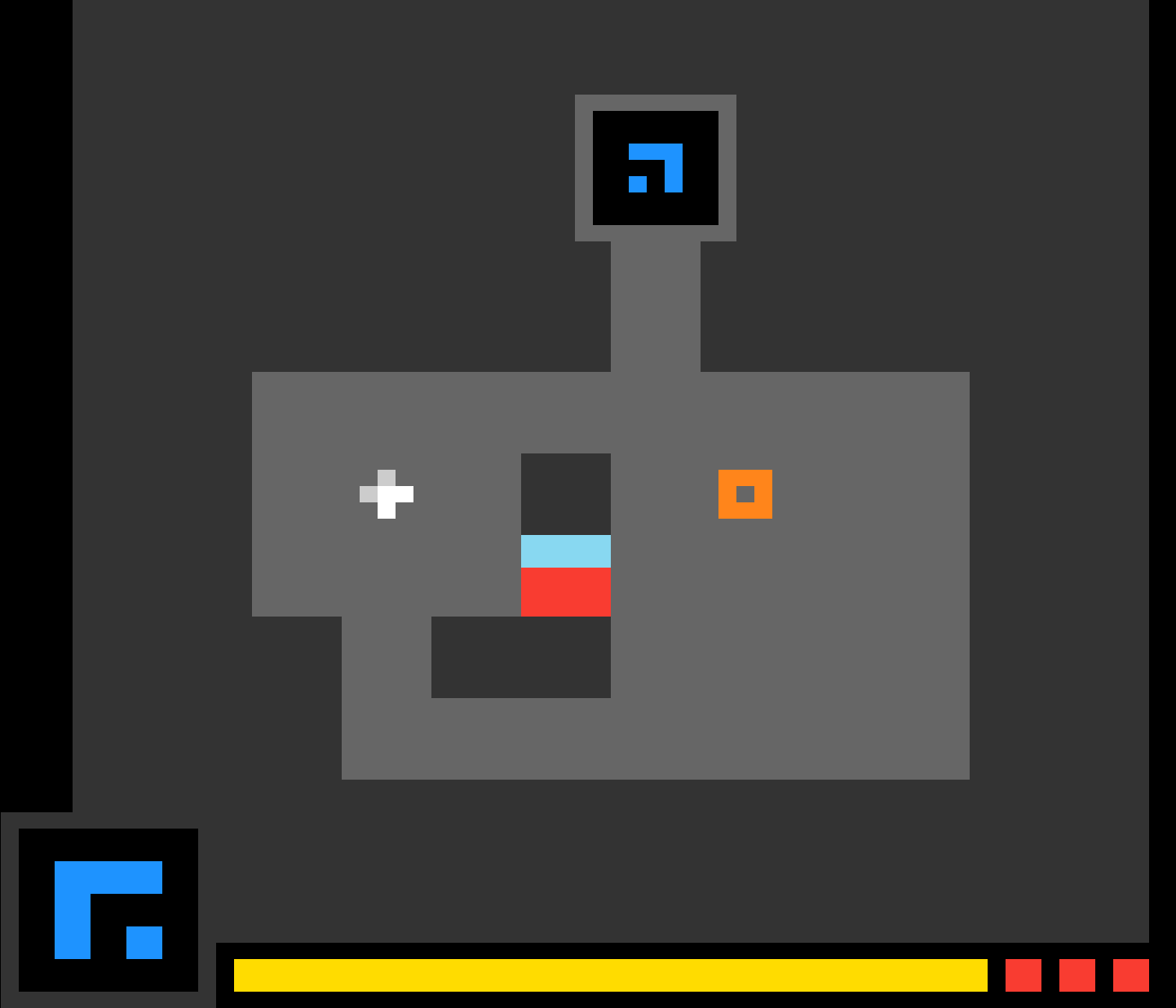
```python theme={null}
Level(
sprites=[
# Edit position
sprites["pca"].clone().set_position(29, 35),
# Edit colors
sprites["zba"].clone().set_position(15, 16).color_remap(None, 12),
# Edit rotation
sprites["kdy"].clone().set_position(49, 45).set_rotation(90),
],
# ...
)
```
This is now the new version of ls20 level 1:
 ***
## Additional Information
### Level Data
The `data` dictionary stores level-specific configuration. This will vary for every game.
```python theme={null}
data={
"Amount": 30,
"Values": [5, 0, 2],
"level_flag": False
"names": ["name-1", "name-2"],
}
```
level data is accessed in the game class:
```python theme={null}
self.amount = self.current_level.get_data("Amount")
self.flag = self.current_level.get_data("level_flag")
```
***
## Other Techniques
### Dynamic Sprite Addition/Removal
```python theme={null}
# Add sprite during gameplay
new_sprite = sprites["sprite-name"].clone().set_position(x, y)
self.current_level.add_sprite(new_sprite)
# Remove sprite
self.current_level.remove_sprite(some_sprite)
```
### Querying Sprites
```python theme={null}
# Get sprites by tag
players = self.current_level.get_sprites_by_tag("Player")
# Get sprite at position
sprite = self.current_level.get_sprite_at(x, y)
# Get sprites by name
ABC_sprites = self.current_level.get_sprites_by_name("ABC")
```
### Animation Pattern
For multi-frame effects, delay `complete_action()`:
```python theme={null}
def step(self) -> None:
if self.animating:
self.animation_frame += 1
if self.animation_frame >= self.animation_length:
self.animating = False
self.complete_action()
return # Don't complete action yet
# Normal game logic...
self.complete_action()
```
Note the game loop keeps calling `step()` until `complete_action()` is called.
## Further Reading
For more detailed information refer to the [ARC Engine](https://github.com/arcprize/ARCEngine).
***
## Additional Information
### Level Data
The `data` dictionary stores level-specific configuration. This will vary for every game.
```python theme={null}
data={
"Amount": 30,
"Values": [5, 0, 2],
"level_flag": False
"names": ["name-1", "name-2"],
}
```
level data is accessed in the game class:
```python theme={null}
self.amount = self.current_level.get_data("Amount")
self.flag = self.current_level.get_data("level_flag")
```
***
## Other Techniques
### Dynamic Sprite Addition/Removal
```python theme={null}
# Add sprite during gameplay
new_sprite = sprites["sprite-name"].clone().set_position(x, y)
self.current_level.add_sprite(new_sprite)
# Remove sprite
self.current_level.remove_sprite(some_sprite)
```
### Querying Sprites
```python theme={null}
# Get sprites by tag
players = self.current_level.get_sprites_by_tag("Player")
# Get sprite at position
sprite = self.current_level.get_sprite_at(x, y)
# Get sprites by name
ABC_sprites = self.current_level.get_sprites_by_name("ABC")
```
### Animation Pattern
For multi-frame effects, delay `complete_action()`:
```python theme={null}
def step(self) -> None:
if self.animating:
self.animation_frame += 1
if self.animation_frame >= self.animation_length:
self.animating = False
self.complete_action()
return # Don't complete action yet
# Normal game logic...
self.complete_action()
```
Note the game loop keeps calling `step()` until `complete_action()` is called.
## Further Reading
For more detailed information refer to the [ARC Engine](https://github.com/arcprize/ARCEngine).